01
Mac and iPhone / iPad
Put both devices on the same Wi-Fi
Connect the Mac and the iPhone / iPad to the same network. Guest networks, and any network that blocks device-to-device traffic, will not work.

CONNECTION GUIDE
PAD and CTRL mode in TranceXY (iOS) send the XY pad, the gain fader and eight performance knobs to TranceXY on your Mac. Connect over Wi-Fi or USB — the Mac needs a one-time setup either way.
No cable, and the easiest to live with. Steps 03 and 04 cannot be automated by an app on macOS, so you set them once by hand.
Connect the Mac and the iPhone / iPad to the same network. Guest networks, and any network that blocks device-to-device traffic, will not work.
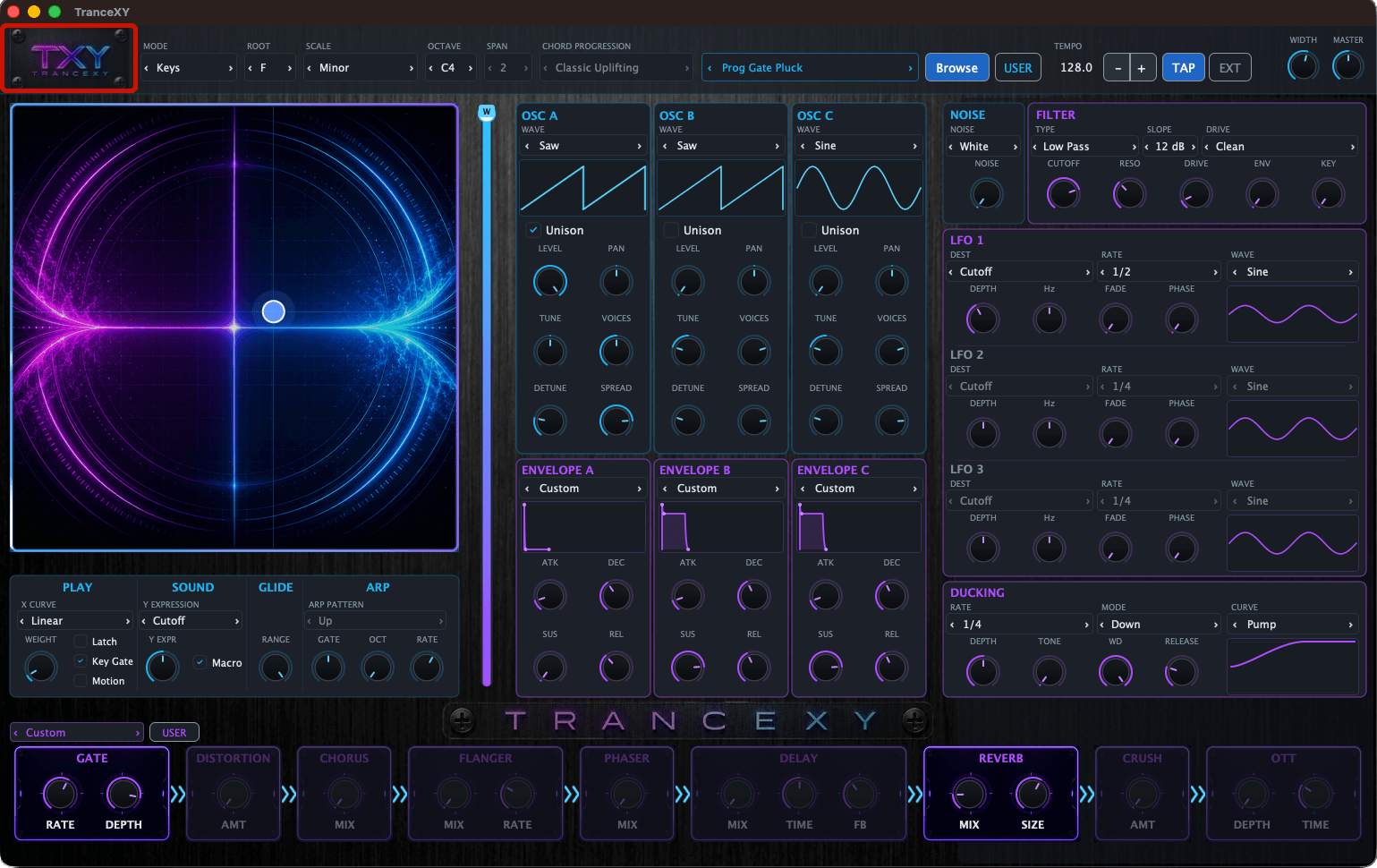
Audio MIDI Setup is a built-in macOS app, not a feature inside TranceXY. Click the logo panel in the top-left corner of TranceXY to open Settings, then press “Open Audio MIDI Setup” in the MIDI Controller tab. You can also launch it directly by searching for “Audio MIDI Setup” in Apps or Spotlight (in Finder, it is under Applications ▸ Utilities). Choosing the iOS controller preset in TranceXY opens it automatically as well.

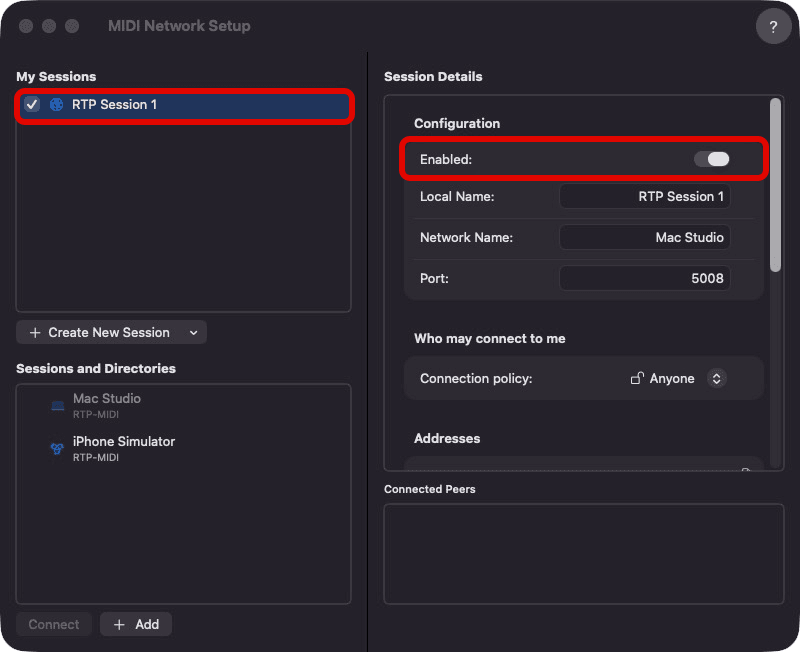
In Audio MIDI Setup choose Window ▸ Show MIDI Studio, then double-click the Network icon. Tick “RTP Session 1” under My Sessions and switch Enabled on.
macOS does not let an app switch this on, so it is a one-time manual step.
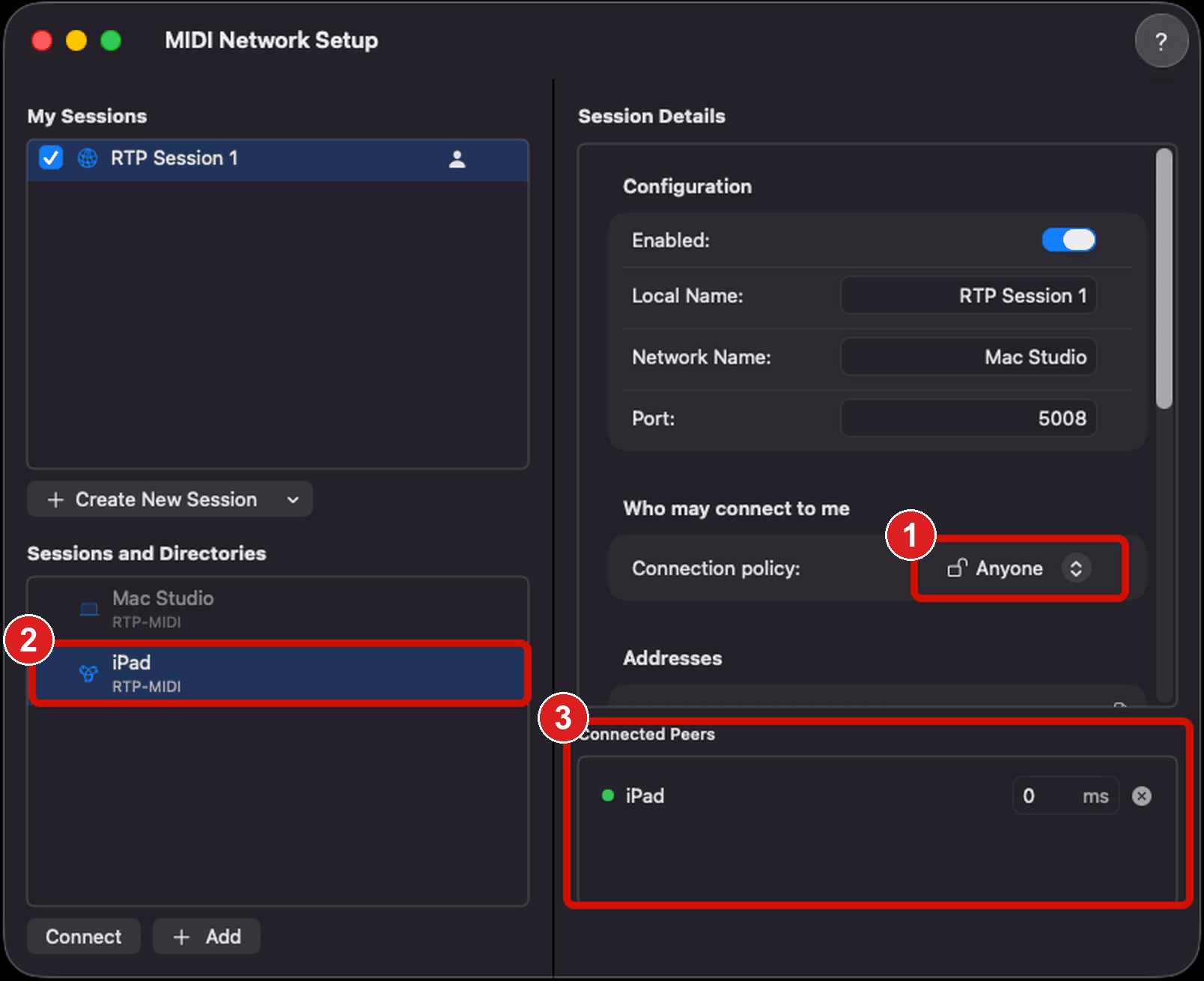
Follow the numbers on the screenshot. ① Under “Who may connect to me”, change Connection policy to Anyone — left at the default “No one”, your device cannot connect. ② Check that the device is listed under Sessions and Directories (if it is not, confirm both are on the same Wi-Fi). ③ When it appears under Connected Peers with a green dot, you are connected.
You can also select the device at ② and press Connect.
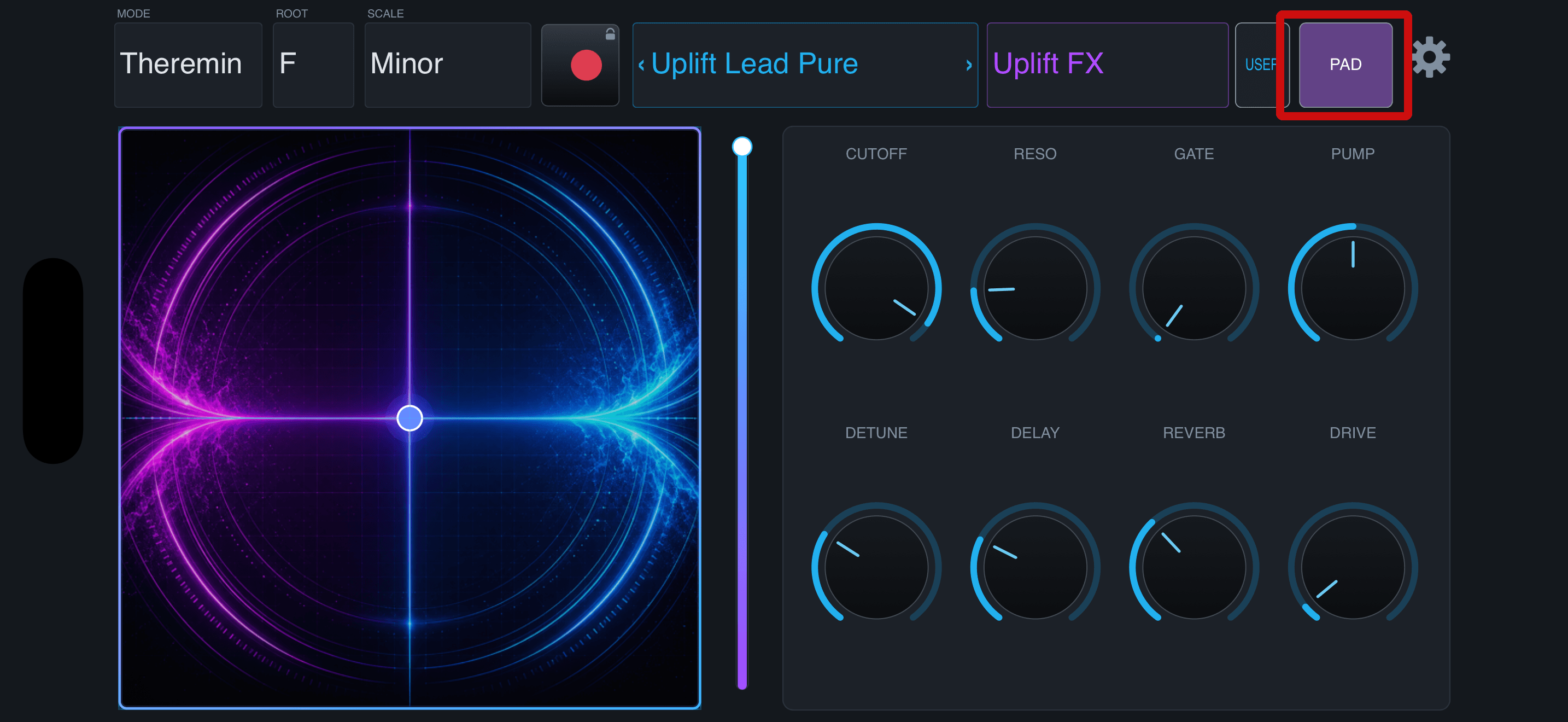
Open TranceXY and use the PAD button to enter PAD mode, or open Settings from the logo plate in the top-left corner and choose CTRL mode. Allow the local network prompt the first time. Once connected, your device appears under Connected Peers on the Mac.
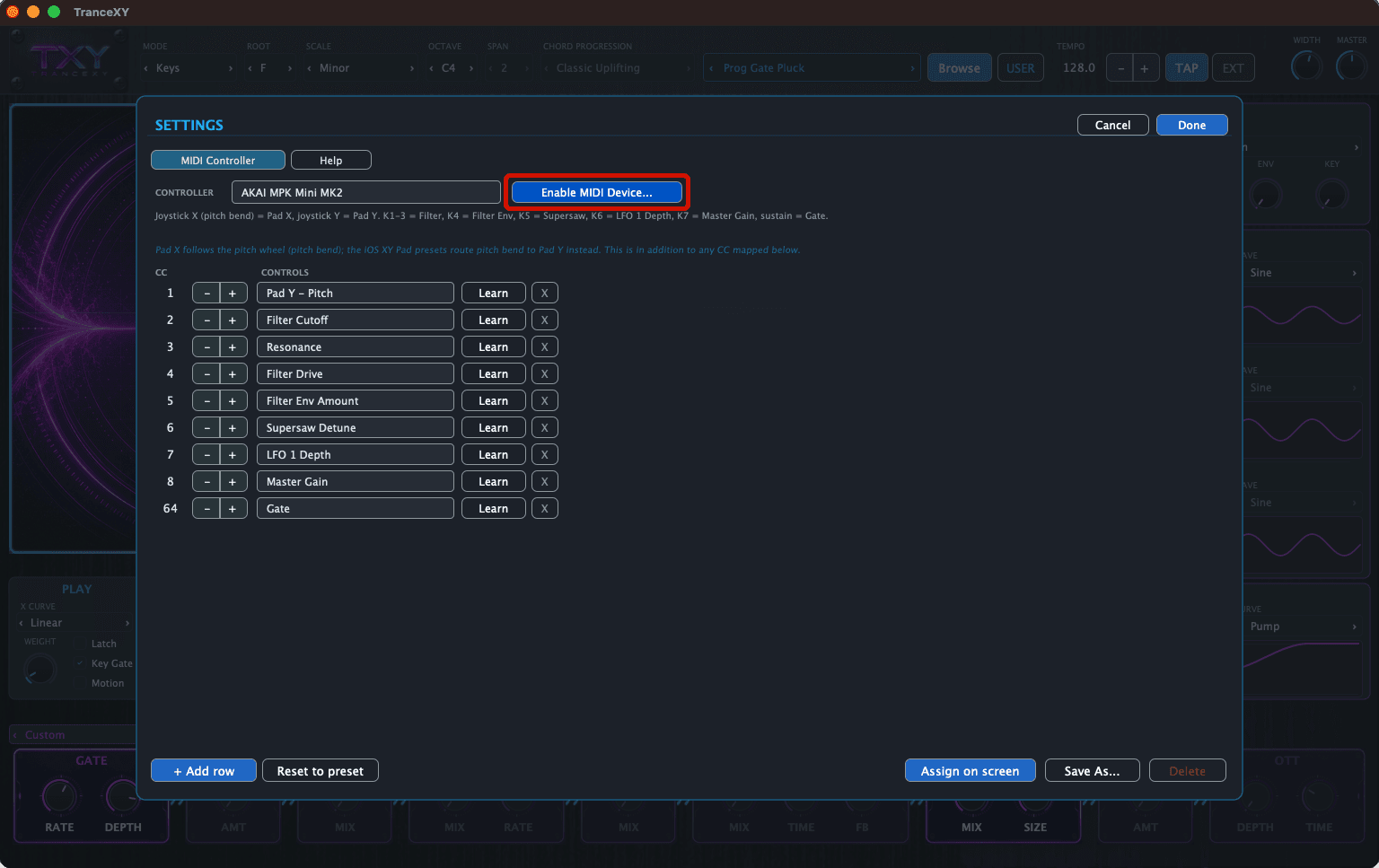
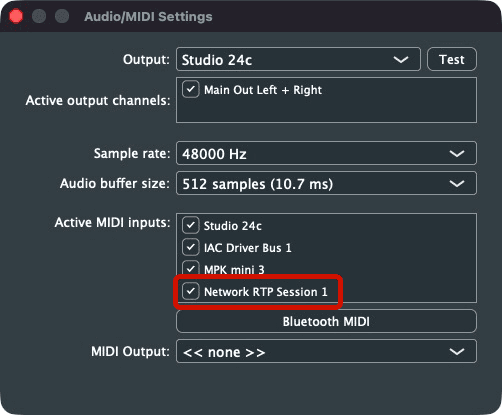
After enabling the network session in Audio MIDI Setup, return to TranceXY. Click the logo plate in the top-left corner to open Settings. In the MIDI Controller tab, press “Enable MIDI Device...”. In the Audio/MIDI Settings window, find the network MIDI session you enabled in step 03 under Active MIDI inputs, tick its checkbox, then press Done. Depending on the Mac configuration, macOS version and session type, it may appear as “Network RTP Session 1”, “Network Session 1”, a Network MIDI 2.0 session name, or a custom Local Name. It does not need to match the screenshot exactly—select the session you enabled in step 03.
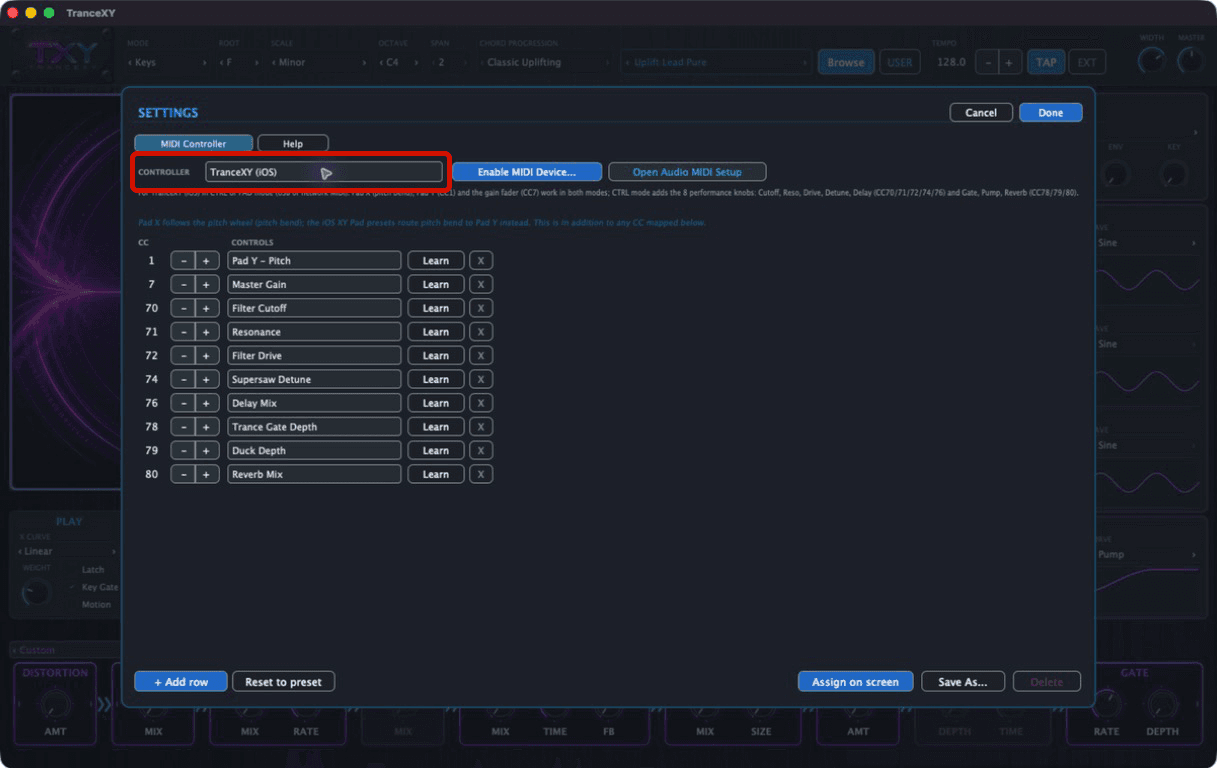
In the same Settings window, stay in the MIDI Controller tab and choose “TranceXY (iOS)” from the Controller menu. That maps the pad, the gain fader and the eight performance knobs.
Skip this and the pad will move but the knobs will not match.
For venues without usable Wi-Fi. The Mac has to enable the device as a MIDI device first.
Plug the iPhone / iPad into the Mac with a charging cable. Tap Trust if the device asks whether to trust this computer.
In Audio MIDI Setup’s Audio Devices window, select the connected iPhone / iPad in the left list and click Enable. The button changes to Disable once it is on.
One-time step.
Quit and reopen TranceXY after enabling the device. Its name then appears among the Mac’s MIDI inputs.
As with Wi-Fi: press “Enable MIDI Device...”, tick the device name, and choose the controller preset “TranceXY (iOS)”.
Work down the list.
| Symptom | Cause | Fix |
|---|---|---|
| The Mac does not react to the pad | The MIDI input is not ticked, or the preset is not the iOS one | Check step 06 and step 07 |
| The device never appears under Connected Peers | Connection policy is still No one | Do step 04 |
| The device is missing from the MIDI inputs | The app is not running, or it was not reopened after enabling USB | Reopen the app, then reopen the MIDI input dialog |
| The pad works but the knobs do not | The controller preset is still set to another device | Switch the preset to TranceXY (iOS) |
| No sound from the iPhone / iPad | Expected: the local synth is silent in PAD / CTRL | The sound comes from the Mac |
Contact support. Tell us the macOS and iOS versions, whether you are on Wi-Fi or USB, and which step you are stuck on.